 By Olivia Thompson
There is nothing quite as frustrating as glancing at your wrist halfway through a busy day, only to see the dreaded red lightning bolt icon blinking back at you. Your Apple Watch is designed to be your constant companion—tracking your heart rate, managing your notifications, and keeping you connected—but all that intelligence comes at a power cost. If you find yourself hunting for a charger before the sun goes down, you aren't alone. The good news is that your battery woes are rarely due to a faulty device; they are almost always the result of a few power-hungry settings running wild in the background.
Maximizing your battery life isn't about turning your high-tech wearable into a glorified paperweight. It’s about being strategic with how you allocate your watch's energy. By making a few surgical adjustments to your configuration, you can easily squeeze extra hours—sometimes even an entire day—out of a single charge. Let’s dive into the settings that actually move the needle and help you take back control of your battery health.
Understanding the Culprits Behind Battery Drain
Before we start flipping switches, it is important to understand what is actually draining your battery. Most users assume that everything is equal, but that simply isn’t the case. The Apple Watch display, continuous background synchronization, and cellular connectivity are the "big three" when it comes to power consumption. When you have a bright, always-on screen constantly pinging a cellular tower, you are essentially asking your watch to perform a marathon while wearing lead boots.
Battery drain is often cumulative. One setting might only shave off 2% of your battery, but when you combine five or six of these "minor" settings, you lose nearly a quarter of your total capacity by noon. By identifying these high-energy tasks, you can decide which ones are essential to your daily routine and which ones are just wasting electricity while you aren't looking.
Pro Tip: Check your battery usage data by going to Settings > Battery on your Apple Watch. This screen will show you exactly how much power your apps have consumed in the last 24 hours, helping you pinpoint if a specific third-party app is the root cause of your drain.
Mastering the Display Settings
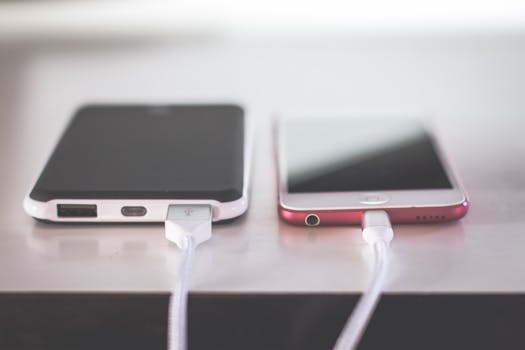
The screen is the single largest consumer of power on your Apple Watch. If you have an Always-On display model, you are essentially keeping a light on in a room you aren't currently in. While the Always-On feature is convenient, it is the first place you should look if you are struggling to make it to bedtime.
To adjust your display settings, navigate to Settings > Display & Brightness. Here, you have a few options to play with. You can toggle off Always On entirely, or you can adjust the Wake Duration. By default, the watch stays lit for a generous amount of time when you tap the screen; changing this to Wake for 15 Seconds instead of 70 seconds can result in a noticeable improvement in your daily battery longevity.
- Reduce Brightness: Lowering the brightness slider even by one or two notches can save significant power, especially in indoor environments.
- Turn off "Wake on Wrist Raise": If you work at a desk and find your watch lighting up every time you move your arm to type, this setting is likely burning through your battery.
- Use a Minimalist Watch Face: Watch faces with heavy animations or many bright white pixels consume more power than simple, dark, or minimalist faces.
Curating Your Notification Stream
Every time your watch buzzes, the screen lights up, the Taptic Engine fires, and the watch connects to your iPhone to fetch the data. If you are receiving notifications for every single email, social media like, and news alert, your watch is effectively buzzing non-stop. This is a massive battery drain that many users completely overlook.
To take control, open the Watch app on your iPhone and tap Notifications. Go through your apps one by one. Do you really need a haptic tap on your wrist every time someone comments on a photo? Probably not. By disabling notifications for non-essential apps, you save the energy used to wake the screen and fire the haptic motor, while also reducing the mental clutter of constant alerts.
Managing Background App Refresh

Background App Refresh is a feature that allows apps to update their content even when you aren't actively using them. While this is great for apps like Weather or Mail, it is often unnecessary for apps like games or social media. When dozens of apps are constantly waking up in the background to fetch data, your processor never gets a chance to rest.
Go to Settings > General > Background App Refresh. You can choose to turn this off globally, but a better approach is to toggle off the specific apps you don't need to be live at all times. If you don't check your stock portfolio every five minutes, there is no reason for the app to be updating in the background while you are walking your dog.
Important Callout: Turning off Background App Refresh does not mean the apps will stop working. They will simply update the moment you open them, rather than wasting battery cycles to update while sitting in your pocket or on your wrist.
Optimizing Cellular and GPS Connectivity
If you have an Apple Watch with cellular capabilities, you are carrying a miniature smartphone on your wrist. When your watch loses its connection to your iPhone, it will hunt for a cellular signal. This search process is incredibly power-intensive. If you spend most of your day near your phone, you don't need your watch constantly searching for a network.
You can manage this by going to Settings > Cellular. If you are in a location with poor service, your watch will work harder to maintain a connection, which will drain your battery in record time. In these scenarios, it is better to toggle Cellular off temporarily. Similarly, if you are tracking a workout, the GPS radio is a heavy hitter. While you want accurate tracking for your runs, be aware that long outdoor workouts are the fastest way to deplete your battery, and charging it immediately after is a necessary habit.
What Most People Get Wrong
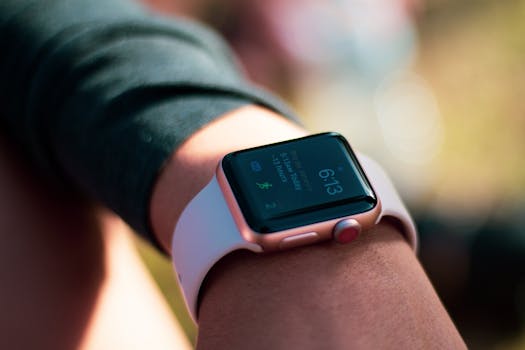
The most common mistake users make is the "Battery Myth." Many people believe that force-closing apps from the App Switcher saves battery. This is incorrect. In reality, force-closing apps can actually hurt your battery life. When you relaunch an app that you just force-closed, the system has to reload the entire app from scratch, which requires more CPU power than simply waking it from a suspended state in the background.
Another frequent error is keeping the Heart Rate and Blood Oxygen sensors running at maximum frequency when they aren't needed. While these are vital health features, you can adjust how often your watch tracks this data. If you aren't actively training for a race, you might not need heart rate variability checks every few minutes. Review your Privacy settings to ensure you aren't over-collecting data that you don't actually use.
The Power of Low Power Mode
When you know you are going to be away from a charger for a long time—like on a flight or a long hike—don't wait for your battery to hit 10% to take action. Apple’s Low Power Mode is a brilliant feature that intelligently balances performance and longevity. It disables the Always-On display, limits background heart rate measurements, and restricts Wi-Fi and cellular connections.
You can activate this by tapping the battery percentage in the Control Center and toggling Low Power Mode on. This is not a "break-glass-in-case-of-emergency" setting; it is a tool you can use whenever you know you need your watch to last longer than usual. It is surprisingly effective, often allowing the watch to last nearly twice as long as it would under normal conditions.
Conclusion: Your Path to Better Battery Life
Achieving all-day battery life on your Apple Watch doesn't require sacrificing the features that make it useful. By being mindful of how your device interacts with the world, you can ensure it stays powered up when you need it most. Start by auditing your notifications to stop the constant wrist-buzzing, take control of your display settings to save the biggest power consumer, and use Low Power Mode as a strategic tool rather than a last resort.
To recap, focus on these three pillars: Simplify your notifications to reduce background activity, dim your display settings to save the screen power, and use Low Power Mode for those days when you know you will be away from the charger. Once you implement these changes, you will find that your Apple Watch stops being a source of anxiety and returns to being the seamless, helpful tool it was designed to be.