
If you own more than one Apple device, you’ve probably heard people talk about the "ecosystem." It’s often cited as the main reason people stay loyal to the brand. But what does that actually mean for your daily life? It isn’t just about having a matching logo on your phone and laptop; it is about a suite of features collectively called Continuity.
Continuity is the invisible thread that ties your iPhone, iPad, Mac, and Apple Watch together. It is designed to dissolve the boundaries between devices, allowing you to start a task on one and finish it on another without missing a beat. When it works, it feels less like technology and more like magic.
Whether you are a long-time user or just unboxed your second Apple device, you might be missing out on some of the most powerful productivity boosters available to you. Let’s dive into how you can unlock this magic and make your devices work as one cohesive unit.
1. Handoff and Universal Clipboard: The Seamless Transition
Have you ever started writing an email on your iPhone while waiting for coffee, only to walk back to your desk and wish you could finish it on your Mac’s full-sized keyboard? With Handoff, you can.
Handoff allows your devices to sense when they are near each other and aware of what you are doing. If you have Safari, Mail, Notes, or other supported apps open on your iPhone, an icon will appear on your Mac’s Dock (usually on the far right or bottom). Click it, and you are instantly brought to the exact same state you were in on your phone.
Even more impressive is the Universal Clipboard. This feature requires zero setup once Handoff is enabled. You can simply copy text or an image on your iPhone and hit "Paste" on your Mac. It travels invisibly through the air and lands in your document.
Pro Tip: For this to work, ensure all your devices are signed into the same iCloud account and have both Bluetooth and Wi-Fi turned on. If Universal Clipboard feels stuck, try toggling Bluetooth off and on again on both devices.
Here is how to ensure Handoff is ready to go:
- On Mac: Go to System Settings > General > AirPlay & Handoff, and ensure "Allow Handoff between this Mac and your iCloud devices" is checked.
- On iPhone/iPad: Go to Settings > General > AirPlay & Handoff, and toggle "Handoff" to on.
2. Sidecar and Universal Control: Expanding Your Workspace
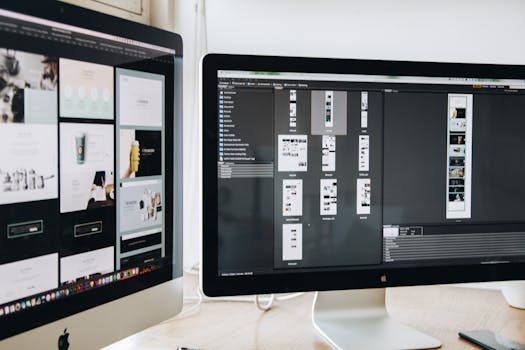
For years, iPad users wanted a way to use their tablet as a second monitor. Apple delivered with Sidecar, and then took it a step further with Universal Control. These two features sound similar, but they serve different purposes depending on your workflow.
Sidecar turns your iPad into a dumb (but beautiful) secondary display for your Mac. You can drag windows over to it, effectively doubling your screen real estate. This is a lifesaver for travelers working from coffee shops who miss their dual-monitor setup at home.
Universal Control, however, is where the real wizardry happens. This feature lets you use a single keyboard and mouse (or trackpad) to control both your Mac and your iPad simultaneously. You don’t need to configure anything. Just place your iPad next to your Mac and push your mouse cursor against the edge of the Mac screen. The cursor will "pop" out of the Mac and appear on the iPad.
Why use Universal Control? Imagine you are editing a video on your Mac, but you want to reference a script open on your iPad, or perhaps drag a photo from the iPad’s Photos app directly into an email on your Mac. It works seamlessly.
- No cables required (though it works wired, too).
- Supports drag-and-drop file sharing between devices.
- Allows you to use Mac keyboard shortcuts on your iPad apps.
3. Continuity Camera: Your iPhone is the Best Webcam You Own
Let’s be honest: built-in laptop webcams have historically been grainy and unflattering. While they have improved, they still cannot compete with the high-powered camera system on the back of your iPhone. Continuity Camera solves this problem by wirelessly turning your iPhone into a webcam for your Mac.
When you bring your iPhone near your Mac and launch FaceTime, Zoom, or Microsoft Teams, the Mac automatically recognizes the phone. You instantly get studio-quality lighting, Portrait Mode (blurred background), and a feature called Center Stage, which follows you if you move around the room.
But Continuity Camera isn't just for video calls. It is also a powerful scanning tool.
Imagine you are writing a report in Pages or an email in Mail on your Mac, and you need to insert a photo of a receipt or a sketch on your desk. You don’t need to take a photo, AirDrop it, and then drag it in. Instead:
- Right-click in the document on your Mac.
- Select "Import from iPhone or iPad."
- Choose "Take Photo" or "Scan Documents."
- Your iPhone camera instantly wakes up. Snap the picture, and it automatically appears in your Mac document.
4. Phone Calls and SMS: Never Miss a Beat
We have all been there: your iPhone is charging in the bedroom, but you are comfortable on the couch with your iPad or working hard on your Mac. Suddenly, your phone rings. In the past, you had to sprint to the other room. With Continuity, you can answer that call right where you are.
Because your devices share a connection, your Mac and iPad function as extensions of your iPhone. You can make and receive standard cellular calls using the microphone and speakers of your Mac. The audio quality is excellent, and it keeps you in your workflow without forcing you to pick up a different device.
This extends to text messages as well. While iMessage (blue bubbles) has always synced across devices, Continuity allows standard SMS text messages (green bubbles from Android friends or bank verification codes) to appear on your Mac and iPad too.
Setting up Text Message Forwarding: To get green bubbles on your Mac, grab your iPhone and go to Settings > Messages > Text Message Forwarding. Toggle on the switches for your Mac and iPad. Now, those one-time login codes will pop up right on your laptop screen!
5. Auto Unlock: The Little Convenience That Adds Up
Security is vital, but typing in complex passwords twenty times a day is tedious. If you wear an Apple Watch, you have a digital key on your wrist. The Auto Unlock feature is one of those "set it and forget it" conveniences that you will immediately take for granted—until you take your watch off.
When you approach your sleeping Mac while wearing your unlocked Apple Watch, the Mac senses your proximity. As you wake the screen or lift the lid, you will feel a gentle haptic tap on your wrist, and the Mac will unlock instantly without asking for a password or Touch ID.
This feature also works for authenticating requests within macOS. If you are changing a system setting or viewing a locked note that usually requires a password, your Mac will often prompt you to double-click the side button on your Watch to approve the action.
To enable this:
- Open System Settings on your Mac.
- Go to "Login Password" (or "Touch ID & Password").
- Look for the section for Apple Watch and toggle the switch next to your watch's name.
Bringing It All Together
The beauty of the Apple ecosystem isn't just in the hardware specifications of a single device, but in how the devices communicate with one another to remove friction from your life. Continuity features are designed to stop technology from getting in your way.
By taking a few minutes to ensure these settings are enabled, you stop thinking about "using an iPhone" or "using a Mac," and start simply "getting things done." So, go ahead—copy on your phone, paste on your Mac, and enjoy the magic.