
Let’s be honest: managing passwords is one of the most frustrating parts of modern digital life. You probably have dozens, if not hundreds, of accounts ranging from your online banking and email to that one random shopping site you used three years ago to buy a specific coffee mug. If you are like many people, you might be guilty of the "one password to rule them all" strategy—using the same password (or slight variations of it) for everything. Or perhaps you rely on a sticky note attached to your monitor.
If you are in the Apple ecosystem, there is a much better, more secure, and infinitely more convenient way to handle this: iCloud Keychain. It is built right into your iPhone, iPad, and Mac, and it is completely free. It doesn't just store your passwords; it creates complex ones for you, fills them in automatically, and even alerts you if one of your accounts has been compromised in a data breach.
Whether you are new to iPhone or a long-time user who has never ventured into the settings menu, this guide will help you master iCloud Keychain and take control of your digital security without the headache.
1. Getting Started: Turning on the Keys to the Kingdom
Before you can start enjoying the magic of auto-filling passwords, you need to ensure the feature is actually enabled. iCloud Keychain works by syncing your login details across all your Apple devices. This means if you save a password on your Mac, it is instantly available on your iPhone. It is encrypted end-to-end, meaning only you can read this data—not even Apple can see your passwords.
Here is how to make sure you are set up:
- On iPhone or iPad: Open the Settings app, tap your name at the very top, select iCloud, and then tap Passwords and Keychain. Toggle "Sync this iPhone" to on.
- On Mac: Click the Apple menu in the top left corner, choose System Settings, click your name, then iCloud. Click on Passwords & Keychain and ensure it is turned on.
Pro Tip: Using iCloud Keychain requires you to have Two-Factor Authentication enabled on your Apple ID. This is a good thing! It ensures that even if someone guesses your iCloud password, they cannot access your keychain without your trusted device.
2. The Art of the "Strong Password"
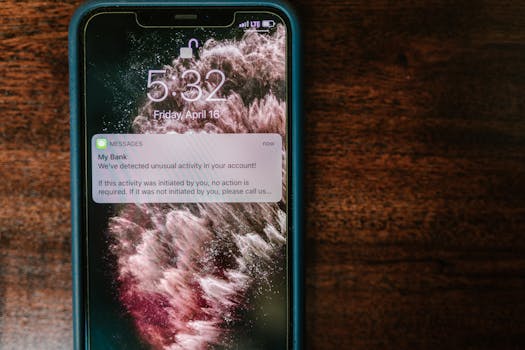
The biggest security risk most of us face is human nature. We want passwords that are easy to remember, like "Fido123!". The problem is, if a hacker figures that out, they can get into your email, your bank, and your social media. iCloud Keychain solves this by taking the "remembering" part out of the equation.
When you sign up for a new account in Safari or an app, your device will automatically suggest a password that looks like gibberish—something like hu7-k9P-m2x. Your instinct might be to reject it and type your own. Don't do that.
Accepting the strong password suggestion is the single best thing you can do for your security. Here is why you should embrace the gibberish:
- Uniqueness: Every single account gets a different password. If one site gets hacked, your other accounts remain safe.
- Complexity: These random strings of characters are virtually impossible for computers to guess through "brute force" attacks.
- Convenience: You never have to type it. Your iPhone uses FaceID or TouchID to verify it's you, and then fills in the blanks automatically.
3. The Health Check: Auditing Your Security
One of the most powerful, yet underused features of iCloud Keychain is the "Security Recommendations" tool. Think of this as a health checkup for your digital life. Apple constantly monitors known data breaches and leaks from around the web. If a password you are using appears in a known leak, your device will warn you.
To check your password health:
- Go to Settings > Passwords.
- Tap on Security Recommendations at the top.
- Make sure "Detect Compromised Passwords" is toggled on.
You might see a list of alerts here. They usually fall into two categories: "Compromised" (meaning this password was found in a data leak and hackers likely have it) or "Reused" (meaning you are using the same password on multiple sites). If you see a compromised warning, change that password immediately. The interface even provides a handy "Change Password on Website" button that takes you directly to the right page.
Note: Seeing a "Compromised" warning doesn't necessarily mean your specific account was hacked, but it means that password is now public knowledge. If you use that password anywhere else, those accounts are vulnerable.
4. Going Beyond Passwords: 2FA and Notes
For a long time, if you wanted to use Two-Factor Authentication (those 6-digit codes that change every 30 seconds), you had to download a separate app like Google Authenticator. While those apps are fine, they can be annoying to switch back and forth between when you are trying to log in.
Apple has built this functionality directly into iCloud Keychain. When you set up 2FA for a website (like Facebook, Amazon, or your Google account), you can save the setup key directly in your Passwords settings.
Why is this better? Because when you go to log in to that site, Safari doesn't just autofill your username and password; it also autofills the 6-digit security code. It makes high-level security feel frictionless.
Additionally, you can add Notes to any password entry. This is incredibly useful for storing non-password information associated with an account, such as:
- Answers to security questions (e.g., "Mother's maiden name: Pizza" - lying on security questions is a great security tactic!).
- PIN codes for account support.
- Specific instructions for that account.
5. Sharing Safely with Family and Friends
We have all done it: texted a WiFi password to a friend or written the Netflix password on a slip of paper for a spouse. This is insecure and messy. With recent updates to iOS and macOS, Apple introduced Shared Password Groups.
This feature allows you to create a secure group with other Apple users—typically your family or close trusted contacts. You can drop passwords into this shared group, and they will instantly appear on everyone else's device. If you change the Netflix password, it updates for your spouse automatically. No more "Hey, what's the new password?" texts.
To set this up:
- Go to Settings > Passwords.
- Tap the + button in the top corner and select New Shared Group.
- Name the group (e.g., "Family Logins") and invite people from your contacts.
- Select which passwords you want to move into the group.
Mastering iCloud Keychain isn't just about security; it's about peace of mind. By letting your device handle the heavy lifting of remembering complex codes, you free up mental space and ensure that your digital identity is locked down tight. So, go ahead—change that "Password123" to a strong, encrypted key, and let your iPhone do the rest.