
You look down at your wrist to check a text message, change a song, or maybe just see what time it is. But sitting quietly on your arm is one of the most sophisticated personal wellness devices ever created. The Apple Watch has evolved from a simple iPhone accessory into a comprehensive health guardian, capable of tracking everything from your nightly REM cycles to the rhythm of your heart.
For many of us, the sheer volume of data in the Health app can be overwhelming. What is "Heart Rate Variability"? Why does it matter if I stand up for one minute every hour? If you have ever felt lost in the metrics, you aren't alone. Let’s strip away the technical jargon and explore how to actually use these features to live a healthier, more balanced life.
Closing the Rings: It’s More Than Just a Game
The most iconic health feature of the Apple Watch is undoubtedly the Activity Rings. Those three colorful circles—Move (Red), Exercise (Green), and Stand (Blue)—are designed to give you a quick visual snapshot of your day. But to truly master them, you need to understand what they are actually measuring.
The Move ring measures active calories. These are calories you burn by moving around, distinct from the calories your body burns just by existing (your basal metabolic rate). The Exercise ring fills up when your heart rate rises above a brisk walk pace. The Stand ring isn't just about standing; it’s about breaking sedentary patterns by moving for at least one minute per hour.
Here is how to make the rings work for you, rather than becoming a slave to them:
- Customize your goals: You don't have to stick to the default settings. If you are recovering from an injury or just starting out, lower your Move goal to something achievable. Consistency beats intensity when you are building a habit.
- Understand the "Brisk Walk": If you are walking the dog but the Green ring isn't moving, you might not be walking fast enough. The watch looks for an elevated heart rate and a specific cadence.
- Use the "Other" workout: Doing yoga or strength training? Sometimes the watch struggles to read heart rate spikes in these activities. Select the specific workout type in the Workout app to ensure you get credit for your effort.
Pro Tip: Did you know you can change your goals every day? Long press on the Activity rings on your watch (or scroll to the bottom in watchOS 10 and later) to change your goals. It is perfectly okay to lower your goal on a rest day—recovery is part of wellness!
Heart Health: Listening to Your Body’s Rhythm
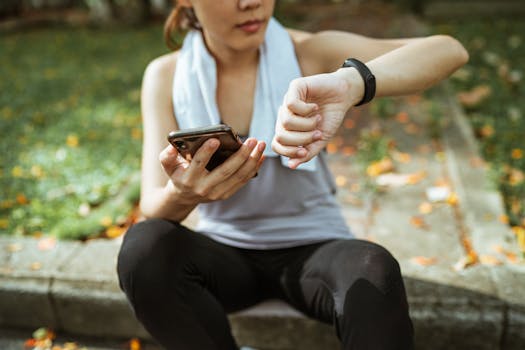
While the Activity rings motivate you to move, the heart health features are there to keep you safe. Your Apple Watch is constantly sampling your heart rate in the background, looking for irregularities that you might not feel.
One of the most valuable metrics is Resting Heart Rate. This is exactly what it sounds like: how fast your heart beats when you are relaxed. Generally, a lower resting heart rate indicates better cardiovascular fitness. If you see this number creeping up over a few weeks, it could be a sign of stress, illness, or overtraining.
For users with Series 4 and later, the ECG app allows you to take an electrocardiogram right from your wrist. This can detect Atrial Fibrillation (AFib), a form of irregular rhythm. While it doesn't detect heart attacks, it provides data that you can export to a PDF and share directly with your doctor.
To ensure you are getting the most protection, make sure your notifications are set up correctly:
- Open the Watch app on your iPhone.
- Scroll down to Heart.
- Set up High & Low Heart Rate Notifications. The watch will alert you if your heart rate is unexpectedly high or low when you have been inactive for 10 minutes.
- Enable Cardio Fitness Notifications to see if your VO2 max (your body's ability to use oxygen) is dropping to a low level compared to others your age.
The Science of Sleep: Quality Over Quantity
For years, Apple users had to rely on third-party apps for sleep tracking, but the native Sleep features are now robust and deeply integrated with the ecosystem. It’s not just about how long you stayed in bed; it’s about what happened while you were there.
The Apple Watch tracks "Sleep Stages," breaking your night down into Awake, REM, Core, and Deep sleep. Deep sleep is physically restorative—it's when your body repairs muscle and tissue. REM sleep is essential for memory and cognitive function. By looking at these charts, you can start to spot patterns. Did that late-night coffee reduce your Deep sleep? Did scrolling on your phone keep you in the "Awake" stage longer?
To get accurate data, you need to establish a routine:
- Set up a Sleep Schedule: Go to the Health app on your iPhone, tap Browse, then Sleep. Set your target bedtime and wake-up time.
- Use Sleep Focus: This is critical. It darkens your watch screen and turns off the "raise to wake" feature so your watch doesn't light up the room if you toss and turn.
- Check the fit: For accurate tracking, the watch needs to be snug (but comfortable). If it's too loose, the sensors can't read your vitals correctly.
Battery Anxiety Tip: Worried about the battery dying overnight? Create a charging ritual. Pop your watch on the charger while you shower and get ready for bed, or while you're having your morning coffee. With the fast charging on Series 7 and later, 8 minutes of charging is enough for 8 hours of sleep tracking.
Mindfulness and Mental Wellbeing
Wellness isn't just physical. Apple has increasingly focused on mental health, recognizing that stress is a major factor in overall physical health. The Mindfulness app (formerly the Breathe app) is often ignored, but it is a powerful tool for regulating your nervous system.
The app offers two main modes: Reflect and Breathe. Reflect gives you a prompt to think about—like a challenge you've overcome or something you're grateful for—and asks you to focus on that for one minute. It helps center your thoughts and break the cycle of anxiety.
Breathe guides you through a series of deep breaths with haptic feedback (gentle taps on your wrist). This rhythmic breathing stimulates the vagus nerve, which can physically lower your heart rate and reduce stress hormones. It is excellent to use right before a big meeting or after a stressful commute.
Newer updates also allow you to log your State of Mind. You can log how you are feeling in the moment or how you felt overall that day. Over time, the Health app correlates this with your sleep and exercise data, helping you see, for example, that you tend to feel more anxious on days when you don't exercise.
Cycle Tracking and Wrist Temperature
For those who track their menstrual cycles, the Apple Watch has become a game-changer, particularly with the Series 8, Series 9, and Ultra models which feature temperature sensing. While previous models relied on manual input, the temperature sensors provide retrospective ovulation estimates.
The watch samples your wrist temperature while you sleep every five seconds. After you wake up, you can see nightly shifts in your baseline temperature. A distinct rise in temperature often occurs after ovulation (the biphasic shift). The Health app uses this data to give you a retrospective estimate of when you likely ovulated.
Even if you aren't trying to conceive, this data is incredibly useful. Irregular cycles can be a symptom of various health conditions, and having a detailed log on your wrist makes conversations with healthcare providers much more productive.
Final Thoughts: Consistency is Key
The Apple Watch is a marvel of engineering, but it is not a magic wand. Wearing it won't make you healthy; acting on the data it provides will. The goal isn't to obsess over every single number or to panic if your sleep score drops for one night. The goal is to use this technology to build awareness.
Start small. Maybe this week you focus solely on closing your Stand ring. Next week, try to get 30 minutes more sleep. Use the device as a partner in your wellness journey, not a taskmaster. By understanding these features, you transform that piece of glass and aluminum on your wrist into a powerful ally for a longer, healthier life.